


How to Correct a PDF After It Has Been Signed
Fix a mistake in a signed PDF with a clear version trail. Check the request status, agree the correction and prepare a replacement or amendment for signature.


- Preserve the signed original before correcting anything. A changed copy is not automatically the document the parties agreed to.
- A sent Sign.Plus request cannot be edited in place. An unfinished request can be canceled before preparing a corrected one.
- For a completed agreement, decide whether to use a replacement or an amendment and obtain the necessary agreement to the change.
- A visible signature remaining on a PDF does not prove that the changed content is covered by that signature.
Can you edit a signed PDF?
You may be able to change a copy of a signed PDF, but changing the file does not make the changed terms agreed or preserve its existing signature evidence. For a business correction, keep the signed original, identify the mistake and decide whether the parties should sign a corrected replacement or an amendment.
First separate three situations: a draft no one has received, a request already sent for signature, and a completed agreement. The next action depends on which one you have.
Choose the correction path before editing
| Situation | Practical next action | Preserve |
|---|---|---|
| Unsent draft | Correct the source document, check fields and review the prepared request | The approved source version |
| Sent request, not complete | Stop the incorrect request, prepare a corrected version and check recipients again | The earlier request history and any relevant actions already taken |
| Completed agreement with incorrect terms | Agree a replacement or amendment with the relevant parties before collecting the necessary signatures | The original agreement and its evidence |
| Annotation or redaction for internal use | Work on a separate copy and label its purpose | The untouched signed original |
Correct a request that has already been sent
Sign.Plus documents that a sent signature request cannot be modified. If the request is still unfinished, its sender can cancel the remaining signing activity before preparing the corrected request.
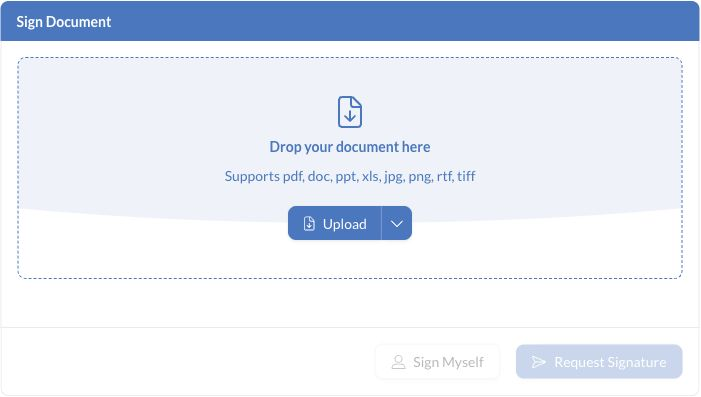
- Confirm the status. Identify whether anyone has already signed and which actions remain.
- Stop the incorrect workflow. For a pending request, the documented cancellation action is Void in the document menu. Tell recipients which version they should use.
- Correct the source. Work from the editable original where available, not by placing new text over the old signed PDF.
- Prepare a new request. Upload the corrected document and review recipients, fields and any verification requirements.
- Explain the change. Give the new version a clear name and explain why it replaces the earlier request.
Voiding is a workflow action. It does not, on its own, determine the legal effect of signatures or agreements already made. If the request has stalled for a delivery or access reason rather than incorrect content, use the request-recovery checks before canceling it unnecessarily.
Correct an agreement that is already complete
A completed agreement deserves a separate change record. Ask the person responsible for the contract whether the correction should be an amendment referring to the original, or a replacement agreement that clearly addresses the earlier version.
Make the changed clause, date or other term easy to identify. Confirm which parties need to agree and sign. Do not backdate signatures to make a correction appear to have been agreed earlier.
An Illinois accounting firm notices that an executed engagement letter names the wrong service period. The firm retains the signed letter, agrees the correction with its client and prepares the appropriate amendment or replacement. Editing the date on its own copy would not record the client's agreement.
When collecting new signatures, check the required recipients and signing sequence instead of assuming the original routing is still right. A duplicated request may carry forward recipients or other details that need review.
Why can the signature remain visible after a change?
The visible mark and the underlying signature evidence are different things. A copied signature image can remain on a changed page. For certificate-based PDF signatures, validation checks the signed data and may also assess whether later changes were permitted.
Not every later PDF update has the same effect. Certain workflows allow additional signatures or specific incremental updates. Changes to agreed text are a different question. The PDF specification's signature and modification-permission rules distinguish covered revisions and permitted changes. Do not treat “the signature still looks right” as a validation result.
If the file shows an unexpected change or validation warning, use the existing signature-verification checks rather than trying to remove the warning by recreating the file.
Keep the versions connected
Once the correction is complete, save the completed files and their evidence alongside the original agreement. Make the relationship clear: which document changed, what the new record does and which one the team should use for the current terms.
FAQs
Can I change a Sign.Plus document after sending it for signature?

A sent request cannot be edited in place. If it is unfinished, the sender can cancel the remaining activity and prepare a corrected request. Review any signatures already made and keep the earlier history where relevant.
Does editing a PDF automatically remove its signatures?
No. A visible signature may remain even when content has changed. For certificate-based signatures, the validation result depends on the signed revision, the later changes and any permitted-change rules. Appearance alone is not proof.
Should everyone sign a corrected agreement again?
Determine that from the correction, the agreement and applicable requirements. A replacement may need fresh signatures, while an amendment records an agreed change separately. Keep the original and confirm the appropriate signers before sending.

Related guides



Confédération Suisse
Confederazione Svizzera
Confederaziun Svizra
스위스 연방
Innosuisse - 스위스 혁신청


