Automatically place signing fields
When you upload a document on Sign.Plus, AI automatically suggests placements for signatures, text, dates, and checkboxes. Review, edit, and assign every field before signing or sending.
Get documents ready to sign
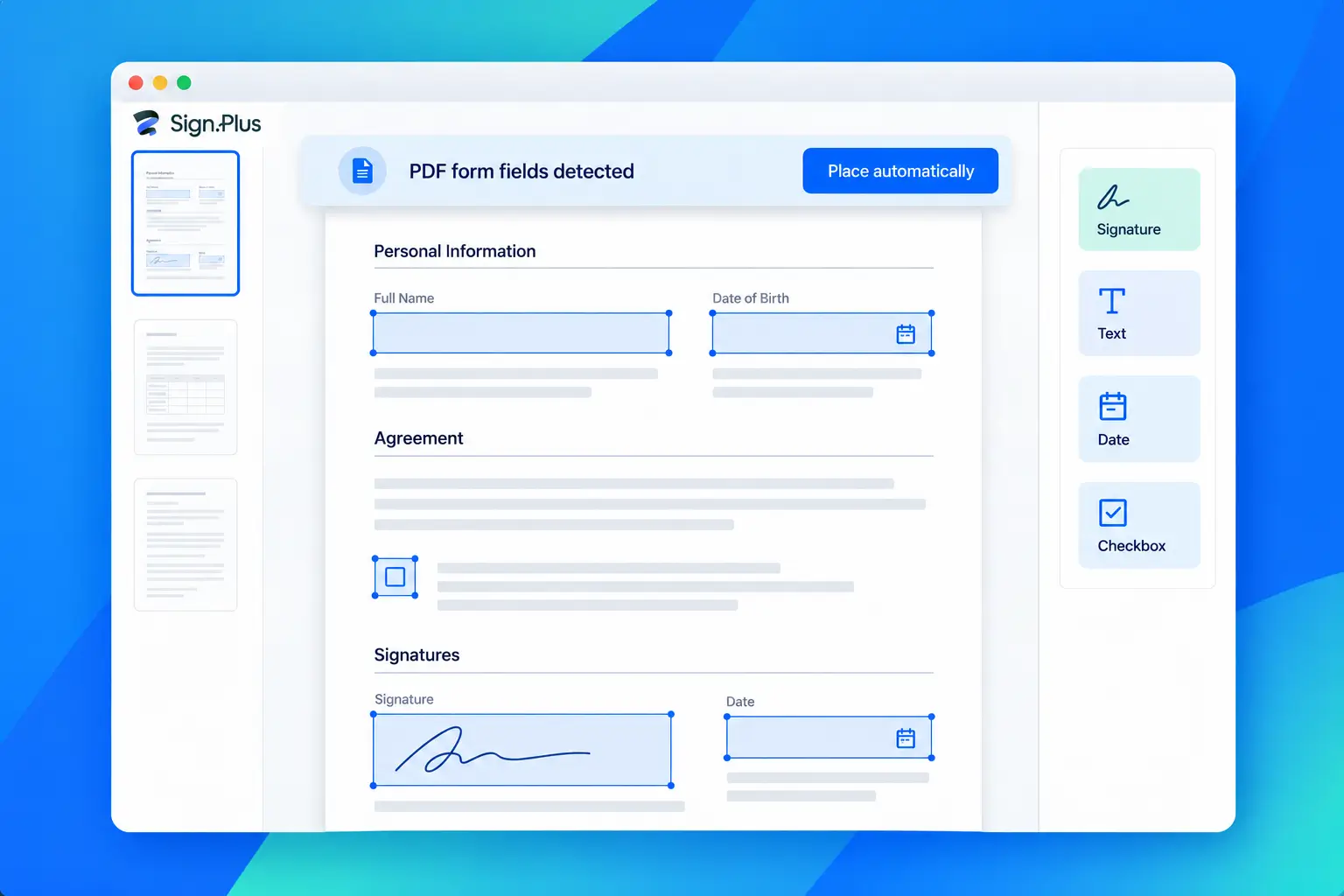
Convert existing PDF form fields
Convert supported fields already embedded in a PDF into editable signing fields.
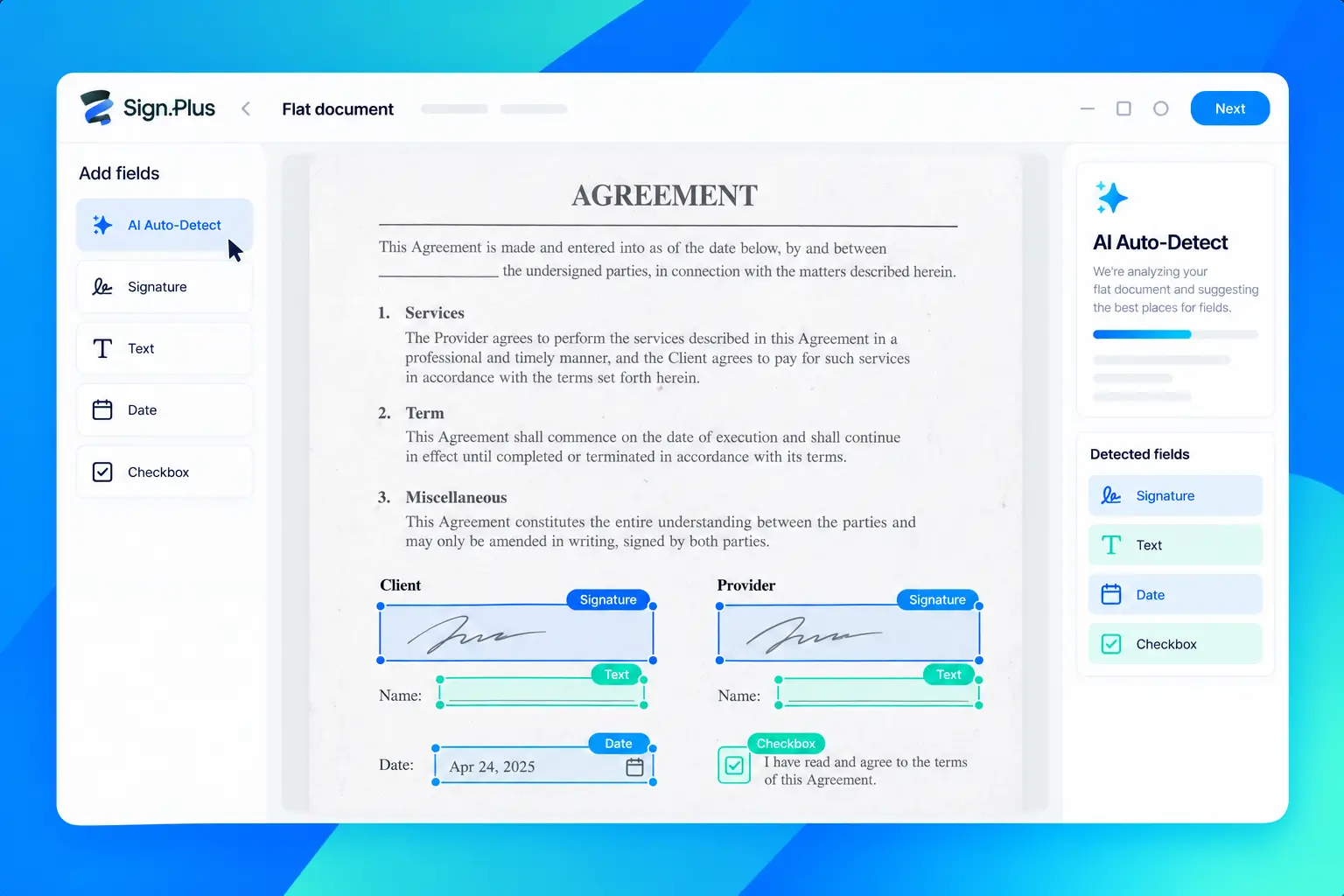
Place fields on flat documents
For documents without fillable fields, AI suggests locations for signatures, text, dates, and checkboxes.
.webp)
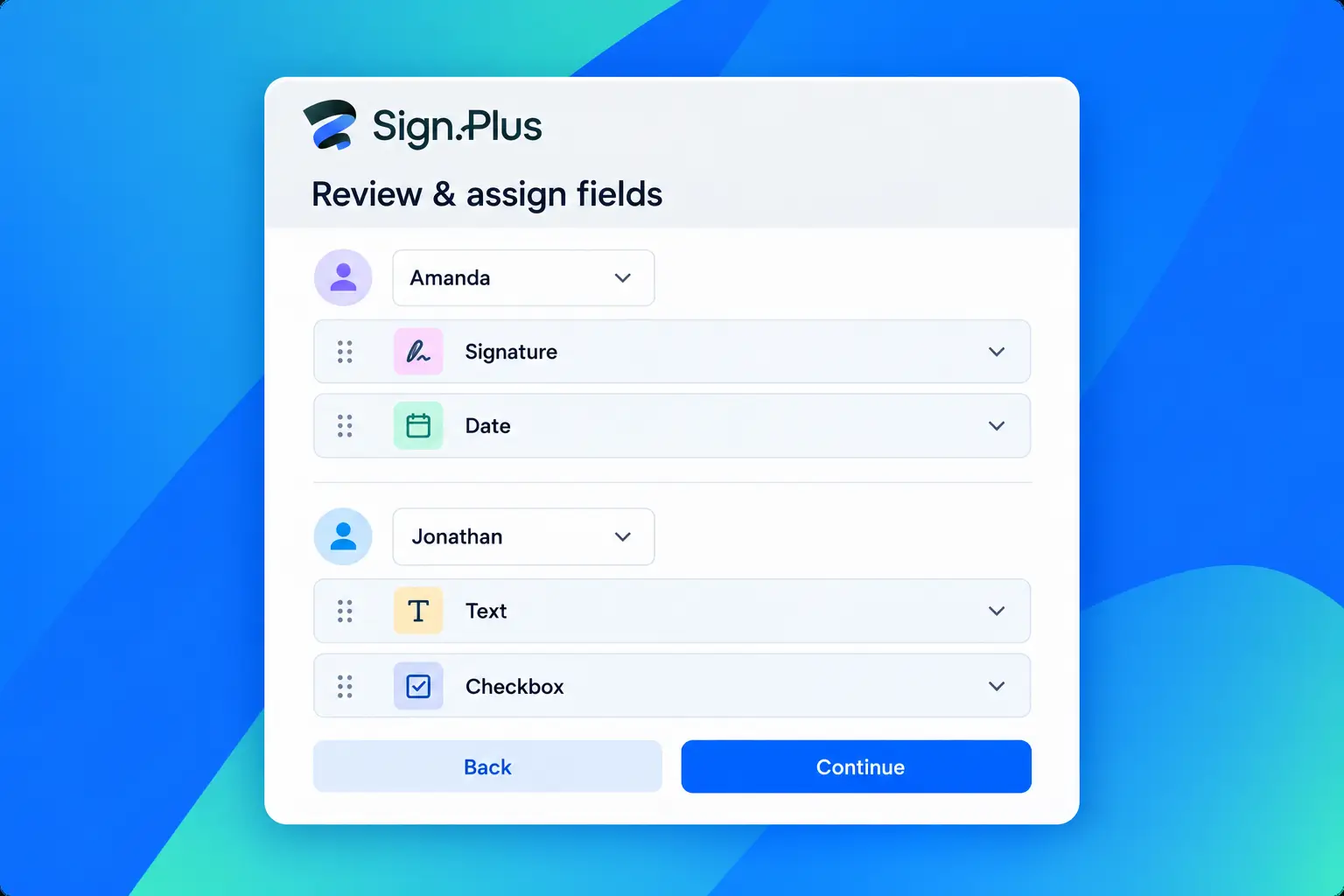
Review, edit, and assign
Adjust each placement and assign fields to recipients or template roles before you send or save a template.
How Auto-Place works
Upload
Auto-Place
Review
Send or sign
You stay in control
Auto-Place creates an editable draft. Confirm each placement, make corrections, and assign the fields before sending or saving the document as a template.
- Inspect signature, text, date, and checkbox fields
- Edit placements on the document
- Assign recipients or template roles
Make any form ready to sign, with less manual work
From patient intake to tax paperwork, Auto-Place helps teams and individuals prepare fields, check every placement, and move documents to signature.
Patient forms
Tax client forms
Form W-4

Fax.Plus to Sign.Plus
常见问题解答
What fields can Auto-Place detect?

It can detect or place signature, text, date, and checkbox fields. Initials should only be placed when explicitly requested.
How does Auto-Place handle a fillable PDF?
Structured detection parses embedded PDF form fields and converts supported fields into Sign.Plus annotations. This detection is available across plans.
Can Auto-Place help with scanned or flat PDFs?
Yes. If the scan is a PDF without fillable fields, run AI Auto-Place to get suggestions for signatures, text, dates, and checkboxes. AI suggestions use your plan’s monthly page allowance and support up to 20 pages per run.
Can I review or change fields before sending?
Yes. Every field stays editable. Review and adjust the placements, then assign fields to recipients or template roles before sending or saving a template.
How are dropdowns and radio buttons handled?
PDF dropdowns are converted to text fields, and radio-button options become independent checkboxes. Attachment requests, combo fields, lists, and tooltips are ignored and remain in the PDF.
Does Auto-Place send the document automatically?
No. The sender reviews and prepares the fields, assigns recipients, and chooses when to send the signature request.
Prepare your next PDF for signing
Start with Sign.Plus and review the monthly AI page allowance included with your plan for flat PDFs.
与我们合作!




Confédération Suisse
Confederazione Svizzera
Confederaziun Svizra
Swiss Confederation
Innosuisse - Swiss Innovation Agency