


Recover a Stalled Signature Request
Find the right next action for a missing invitation, blocked signing step, expired link or declined request. Keep corrections and completed records distinguishable.


- Check the request status before resending. Waiting on an earlier signer, failed delivery and an expired document need different actions.
- An expired access link can be renewed while the request is active. A document past its signing deadline is a different case.
- In Sign.Plus, a recipient decline voids the pending request. A reminder does not restart a voided process.
- Correct recipient or document mistakes with a deliberate replacement workflow, and keep the original history where relevant.
Find what is waiting before taking another action
A signature request can stop moving because someone has not acted, the next step is not active, an invitation was filtered or the request has ended. Start with status and the active signer, not another copy of the email.
Open the request in Documents and review its progress or audit information. Confirm the document name and version, recipient address, outstanding signing step and any recorded failure, decline or expiry.
Match the symptom to the next check
| What you see | Check first | Next action |
|---|---|---|
| The next signer has no invitation | Whether the prior signing step is complete | Resolve the active step before treating it as failed delivery |
| An active signer received nothing | Recipient address, sent/failure events and mail filtering | Confirm the address and delivery, then send an appropriate reminder |
| The access link expired | Whether the document's own signing deadline has passed | Renew access only while the request remains active |
| The recipient declined | The recorded status and the recipient's reason | Resolve the issue before deciding whether to prepare a new request |
| The document expired or was voided | Why the workflow ended | Review what needs changing before starting another request |
| The agreement is complete | Whether you downloaded the final file | Retrieve and check the completed record, rather than chasing another signature |
If a later signer is waiting, inspect the earlier step
In a sequential workflow, the next signing step waits until the required people in the preceding step finish. For several people signing in parallel within that earlier step, one outstanding signer can hold the next stage.
Use the routing and recipient-role checks to confirm that the intended person is actually a signer, in the right step, with the right fields. A person who only receives a copy does not replace a required signing action.
If the invitation is missing, check delivery before changing the document
Confirm the address and whether the request was sent successfully. Ask the recipient to check spam, junk and any corporate quarantine. Sign.Plus invitations come from notification@sign.plus; the recipient's IT team may need that sender information to investigate filtering.
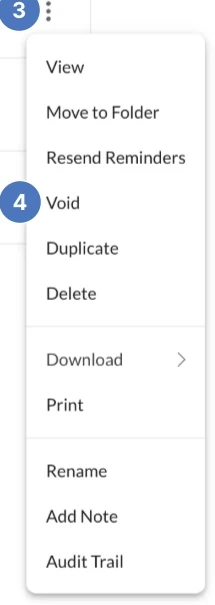
For an active pending request, the documented Resend Reminders action sends an updated access email. In an ordered workflow, it targets the next signer in the sequence. If several people are affected, follow the delivery troubleshooting checks rather than repeatedly creating new requests.
Contact the recipient separately if you need a response about the agreement. Replies to the notification email are not forwarded to the sender by default.
Separate an expired link from an expired document
An access link and a signing deadline are different. Sign.Plus documents a 24-hour access-link expiry, after which the recipient can request another email while the request is still active. Once the document's signing deadline passes, pending actions are canceled and the request is voided.
The expiry guidance explains why a fresh link cannot reopen a document that has already expired. Review the reason for the missed deadline and prepare a new request if the transaction should continue.
If the recipient declines, resolve the reason first
A decline may signal wrong terms, the wrong person or an intention not to proceed. In Sign.Plus, a recipient decline voids the pending request. Do not treat it as an unanswered invitation.
Ask the relevant parties what needs to happen next. If the document itself is wrong, follow the correction and replacement process. If the person is wrong, confirm who should sign and any authority or verification requirements before preparing another request. Do not forward an identity-bound signing link to a different person.
Canceling or voiding the workflow does not by itself decide whether an agreement or an earlier signature has legal effect. Preserve relevant actions and involve the agreement owner where that question matters.
Prevent the next avoidable delay
A Florida healthcare administrator is waiting for a provider's signature. Before sending another request, the administrator checks the address, active step and whether the provider received the invitation. That prevents a delivery issue becoming two competing requests.
For repeated documents, verify the recipient list and source version before sending. With a batch, check the CSV and template rather than carrying the same address mistake into every retry. Once the required signing process is complete, save the completed record and its evidence.
FAQs
Can I resend a signature request after its access link expires?

An active request can use a renewed access email. Sign.Plus distinguishes the access-link expiry from the document signing deadline. After the document itself expires, its pending actions are canceled and a new link cannot reopen that request.
What should I do when someone declines an electronic signature request?
Check the recorded status and ask the recipient why they declined. Resolve incorrect terms, recipient identity or other objections before preparing another request. A reminder does not restart a voided workflow.
Does voiding a request automatically cancel the contract?
Voiding stops remaining signing activity in that request. It does not, on its own, determine the legal effect of an agreement or signatures already made. Preserve the relevant record and ask the agreement owner or legal team where needed.

Related guides





Confédération Suisse
Confederazione Svizzera
Confederaziun Svizra
スイス連邦
Innosuisse - スイスイノベーション機関


