Firme todo lo que pueda imprimir
Firmar es tan fácil como imprimir. Elija Print to Sign en el menú de impresión de cualquier aplicación para enviar documentos directamente a Sign.Plus y, después, fírmelos usted mismo o solicite firmas, sin necesidad de guardar ni cargar archivos.

 Descargar para Windows
Firme o solicite firmas directamente desde el cuadro de diálogo de impresión
Preparar firmas es tan fácil como imprimir. Elija Print to Sign en el cuadro de diálogo de impresión de cualquier aplicación para enviar el documento directamente a Sign.Plus.


Cómo funciona Print to Sign
Instale el controlador una vez, autentíquelo con su cuenta de Sign.Plus y, después, use el cuadro de diálogo de impresión de cualquier aplicación para firmar o solicitar firmas sin cargar manualmente el documento.
Descargue e instale Print to Sign
Elija Windows o macOS, abra el instalador descargado y siga las instrucciones en pantalla.
Según la configuración de su equipo, es posible que necesite permisos de administrador para completar la instalación.
.webp)
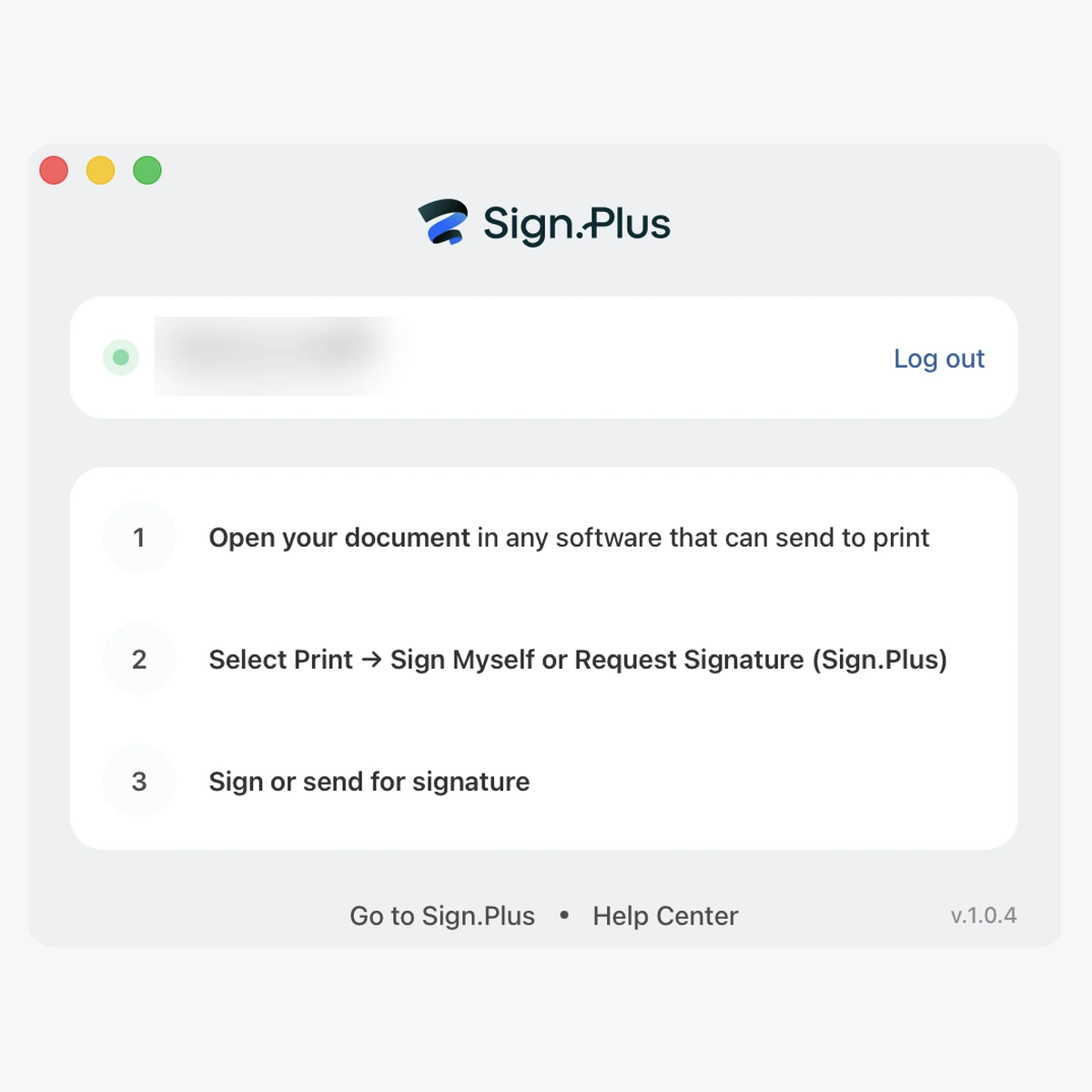
Inicie sesión y conceda permisos
Cuando termine la instalación, inicie sesión en su cuenta de Sign.Plus.
Si se le solicita, conceda los permisos adicionales que Print to Sign necesite para funcionar correctamente. Tras iniciar sesión con éxito, su navegador le confirmará que puede cerrar la pestaña.
Imprima desde cualquier aplicación
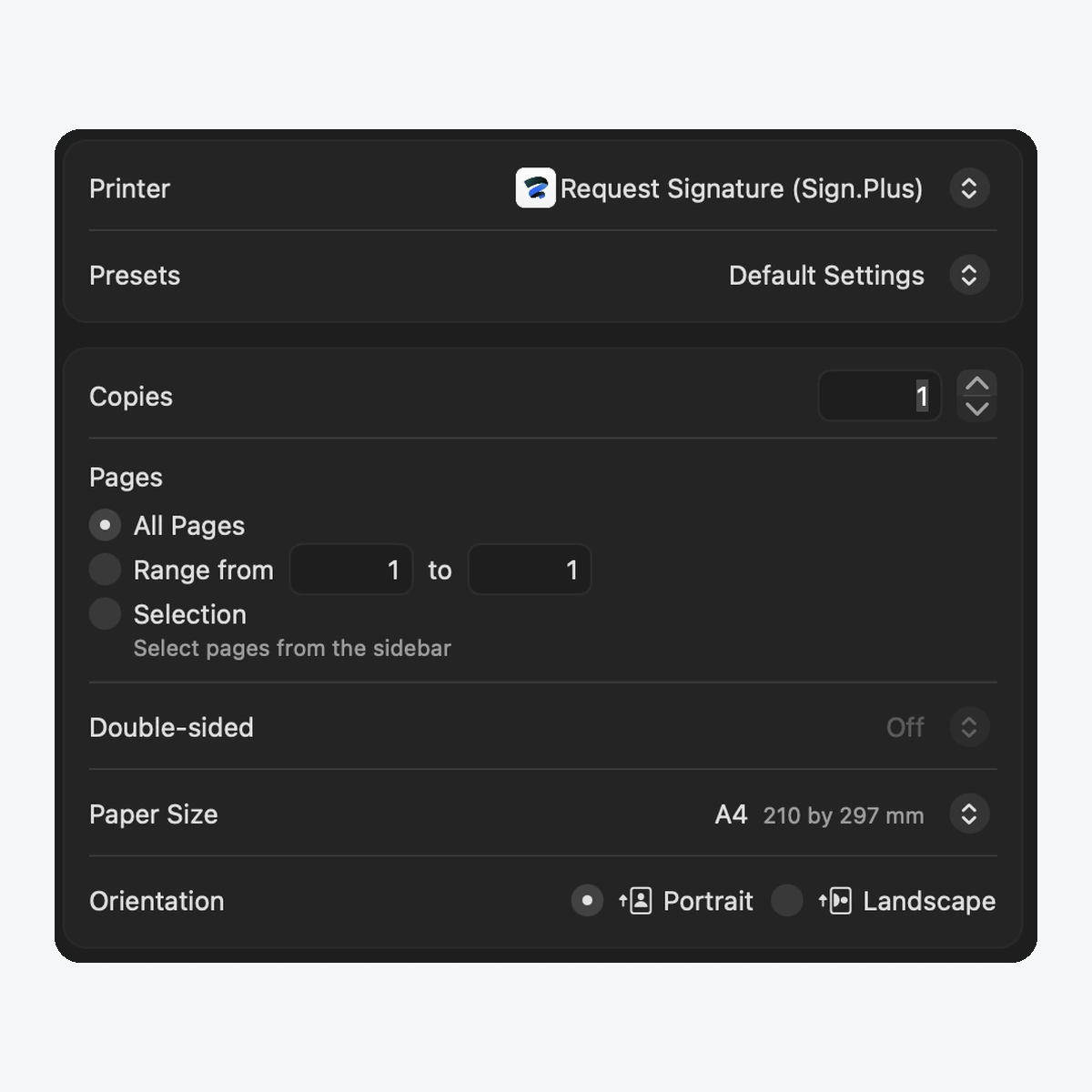
Abra el documento que desea firmar o enviar y, a continuación, abra el cuadro de diálogo de impresión con Archivo → Imprimir o Ctrl+P / Cmd+P.
En la lista de impresoras, elija Request Signature o Sign Myself y haga clic en Imprimir.
Complete el proceso de firma en Sign.Plus
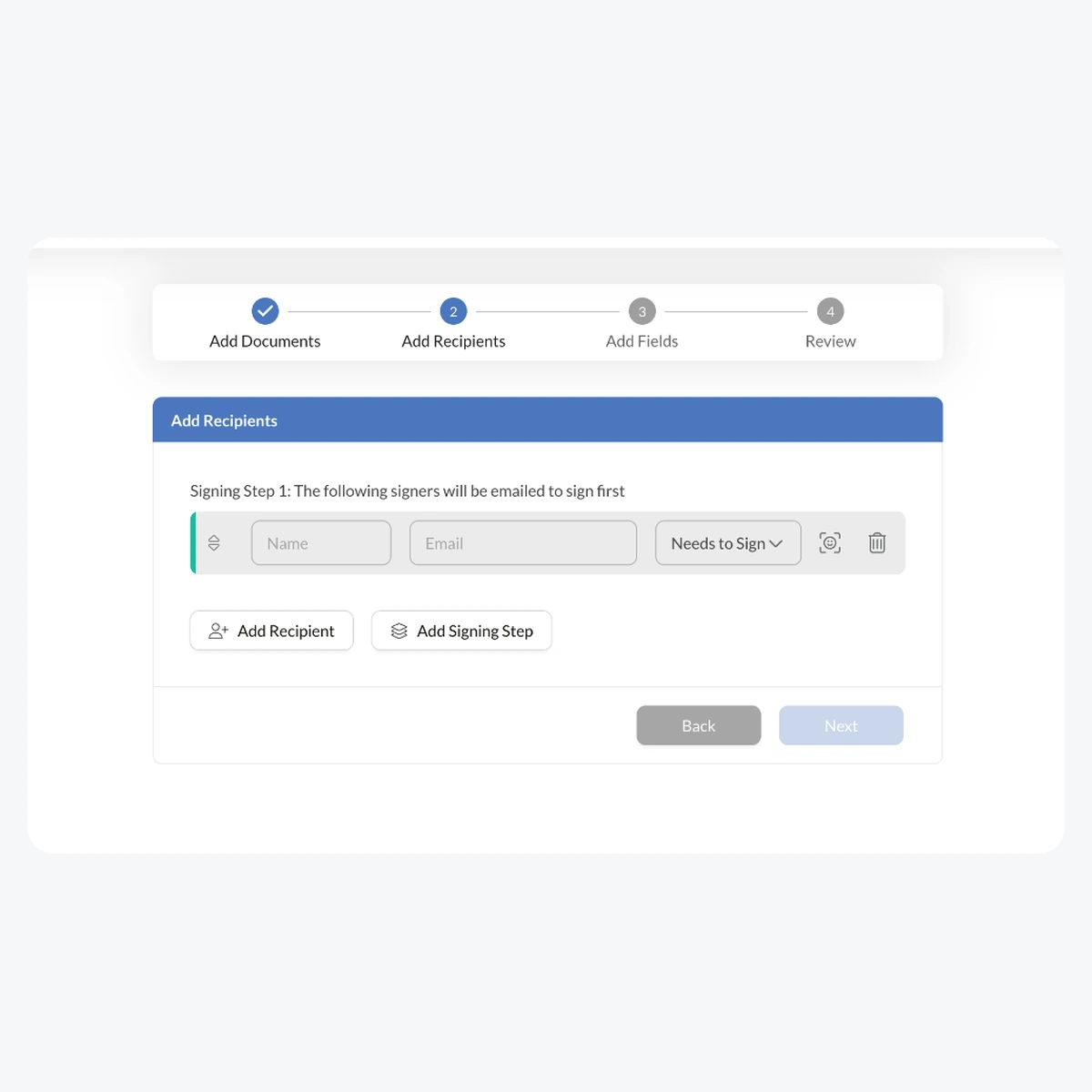
Se abrirá una ventana de Sign.Plus con su documento.
Fírmelo usted mismo o añada el nombre y la dirección de correo electrónico de cada destinatario y, después, envíe la solicitud de firma.
Preguntas frecuentes sobre Print to Sign
¿Dónde puedo descargar el controlador de Print to Sign?

Utilice los botones de descarga para macOS o Windows que aparecen arriba para obtener directamente el controlador de Print to Sign. También puede encontrar Print to Sign en su cuenta de Sign.Plus, en Configuración → Firma.
¿Necesitan los destinatarios una cuenta de Sign.Plus para firmar?
No. Una vez que envíe una solicitud de firma, el destinatario recibirá una invitación por correo electrónico para revisar y firmar el documento, tenga o no una cuenta de Sign.Plus.
«Request Signature/Sign Myself» no aparece en mi lista de impresoras
Asegúrese de que el controlador se haya instalado correctamente. Pruebe a reiniciar el equipo tras la instalación y vuelva a consultar la lista de impresoras.
No se pudo enviar la solicitud de firma
Compruebe que su cuenta de Sign.Plus esté activa y que le queden solicitudes de firma. Puede verificarlo en Configuración → Plan y facturación.
Se me solicita iniciar sesión después de hacer clic en Imprimir
El controlador necesita autenticarse con su cuenta de Sign.Plus. Introduzca sus credenciales cuando se le solicite. Si la sesión sigue cerrada, intente reinstalar el controlador.
Descargar Print to Sign
Descargue gratis el controlador de Print to Sign. Funciona en Windows y macOS. Firme o solicite firmas directamente desde su cuadro de diálogo de impresión.




Confédération Suisse
Confederazione Svizzera
Confederaziun Svizra
Confederación Suiza
Innosuisse - Agencia Suiza de Innovación