How to Sign a Google Doc Online
Effortlessly sign a Google Doc with Sign.Plus on your computer, tablet, or smartphone.
How to add an online signature on a Google Doc:
Sign up for a free account on Sign.Plus.
Go to the "Sign" section, upload the Google Doc you wish to sign online, and click on Sign.
Select the fields you would like to add to your document.
Sign online your Google Doc.
Sign a Google Doc Online (5 Different Methods)
If you need help with how to sign a Google Doc, take a look at our detailed guides below. We will guide you on:
How to insert a signature online with the Google Workspace
How to add a signature in Google Docs using Sign.Plus online signature application.
Add a signature to Google Docs using the drawing tool.
Converting to PDF and then Sign.
Add a signature line in Google Docs.
How to Add a Signature in Google Docs with the Sign.Plus Add-On

- Open a Google Doc or draft a new one.
- Make all the changes you want to the Google Doc and get it ready for Signature.
- Install and access the Sign.Plus for Google add-on directly from the Extensions tab.
- On the right sidebar, either sign in to your existing Sign.Plus account or effortlessly sign up for a free account.
- Authorise Sign.Plus to access the document and Open with Sign.Plus
- Choose from Sign Myself or Request Signature.
- Specify recipients and their roles, and if needed, set up multiple steps for the Online signature process.
- Add various fields like signature, initials, text fields, date stamps, and more by simply dragging and dropping them into your document.
- Send your document for signature, either by signing it yourself or saving it as a reusable template.
- Stay informed with real-time updates on each recipient's progress, including whether they've opened, viewed, signed, or voided your document.
How to Insert a Google Doc Signature with the Sign.Plus Application
Upload document(s)
On your Sign.Plus dashboard, navigate to the Sign section, upload your document(s), and click Request Signature to proceed.
Add recipients/fields
Specify recipients and define the signing order and steps. Customize the document by dragging necessary fields such as signatures, initials, text fields, dates, and checkboxes.
Send for signature
Well done! Your document is ready to be sent for review and signing. You can also set up automatic reminders, specify an expiration date, and add an optional note for recipients.
Upload document(s)
On your Sign.Plus dashboard, navigate to the Sign section, upload your document(s), and click Sign Myself to proceed.
Annotate and eSign
Customize your document for signature, simply drag fields around like signature, text, initials, date, and checkboxes.
Download document
Well done! Click Download to instantly access your signed document, complete with a tamper-proof audit trail.
1. Upload your Document
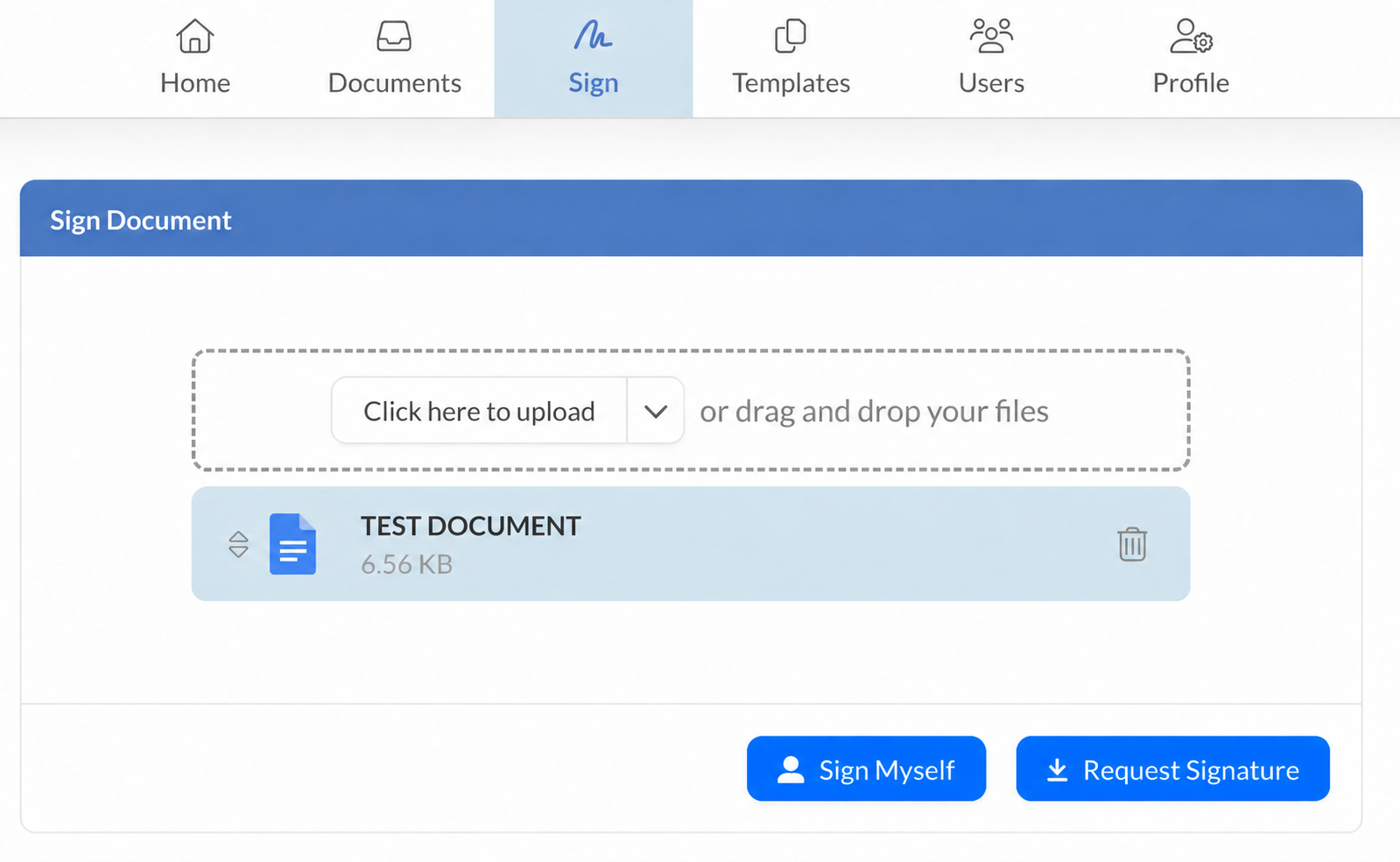
To get started with adding an electronic signature in Google Docs, head over to your Sign.Plus dashboard. In the Sign area, look for the option to upload or drag and drop your Google Docs file. If you have several documents to sign, you can reorder them to determine the sequence in which they appear. This setup offers a straightforward way to understand how to sign a Google Doc effortlessly.
2. Select “Request Signature”
After uploading the Google Docs file, you’ll see a prompt to Request Signature. Clicking this speeds up the signing process, giving you an easy path to insert a signature in Google Docs for you or other parties.
3. Provide Signer Details and Click “Next”
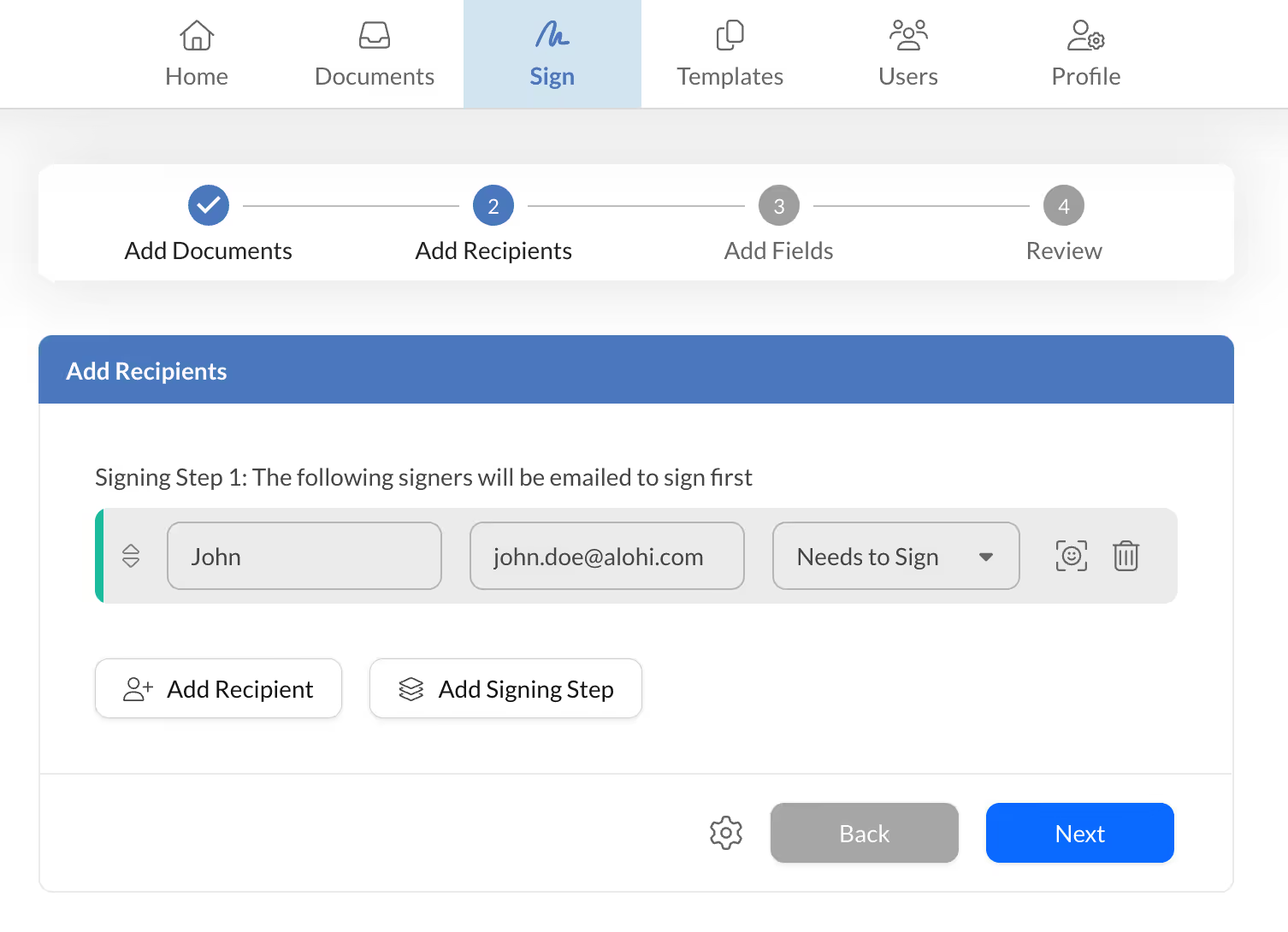
In the Add Recipients section, fill in each signer’s name and email address. You can also set the order in which each recipient will receive the Google Doc—handy for multi-step approvals.
Add Recipient:Input each signer’s name and email address. These individuals can sign the Google Doc or simply acknowledge receipt.
Add Signing Step: Define the order in which each signer will get the document.
When finished, hit Next.
4. Add Signature Field
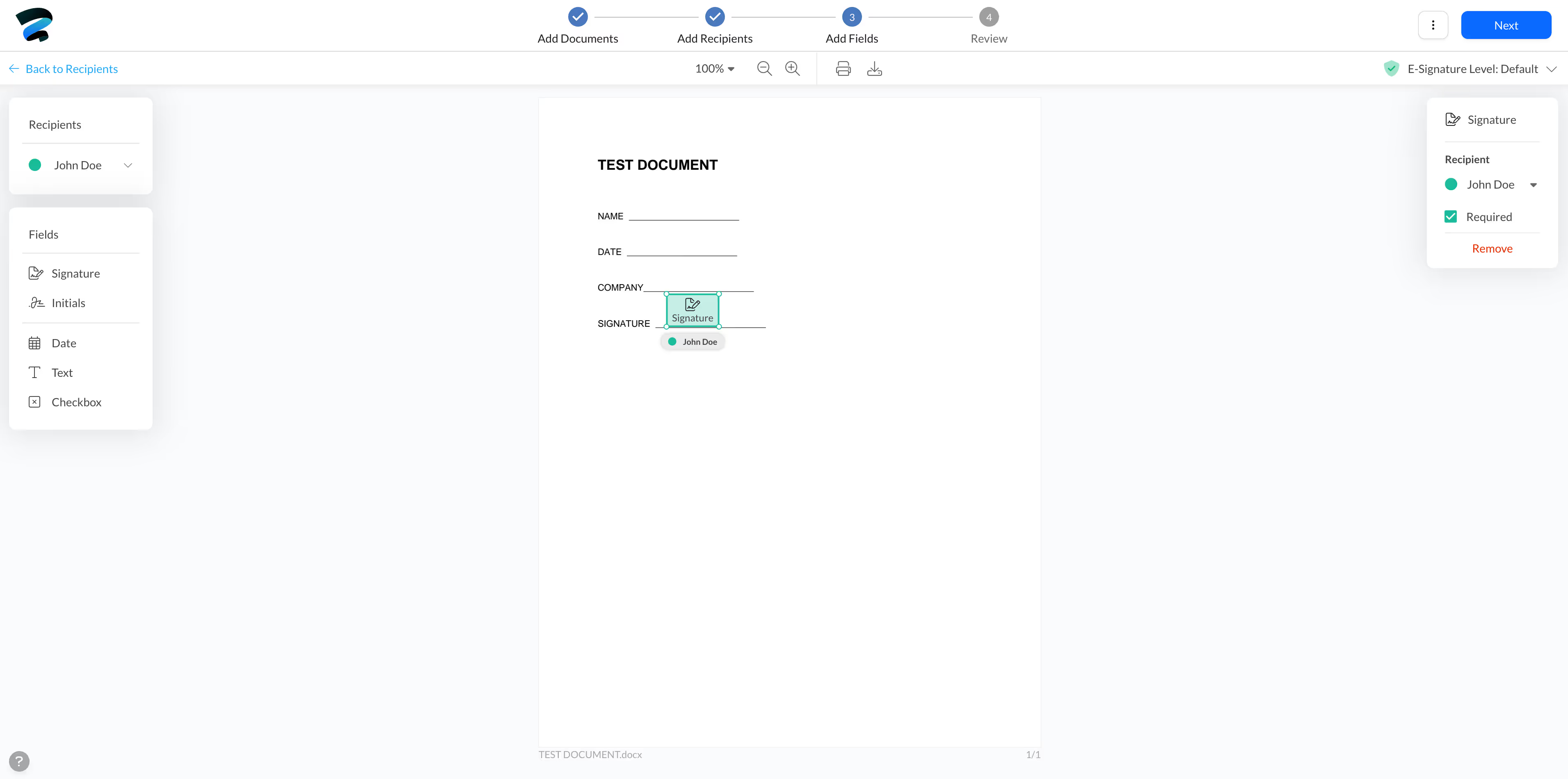
Within the Add Fields area, pick which recipient is responsible for signing and place the appropriate signature field in the doc. If you need initial boxes, date fields, or text fields, simply drag and drop them where they’re needed. You can also switch signers for any field by selecting the field and choosing a different recipient in the editor.
Under Recipient, use the dropdown to pick the correct individual who must sign the document.
Under Add Fields, place a signature, initials, date fields, checkboxes, or text fields onto the document.
If you need to modify who will sign a particular field, simply click that field and pick a different signer in the right-hand editor.
5. Personalize your Signature Request
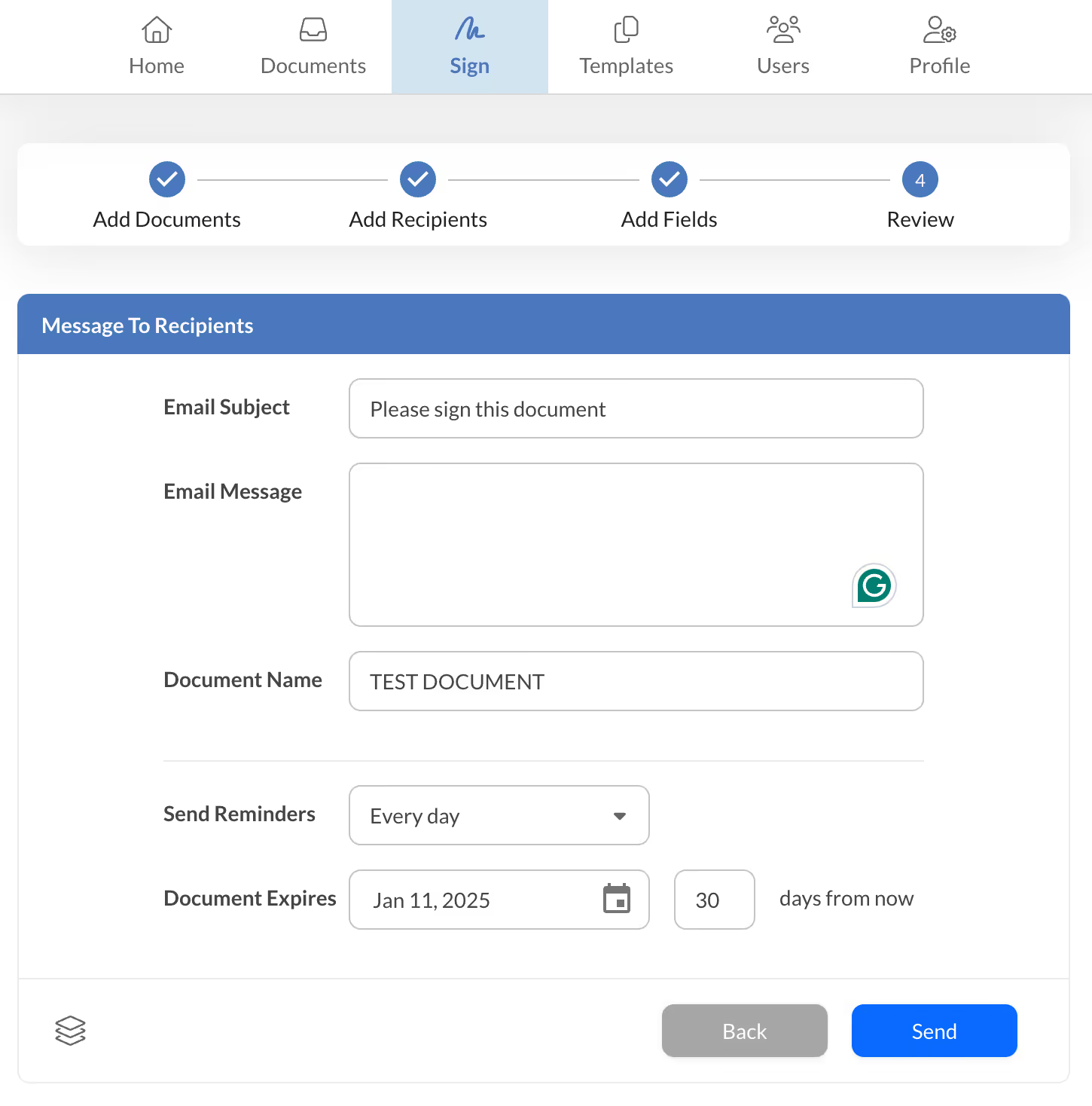
Hit Next to enter the Review phase. Here, you can customize how the Google Doc eSignature request will look and feel:
Email Subject
Email Message
Document Name
Reminders
Document Expiry
Finalize your preferences, then click Send. Your signers will receive email or push notifications so they can sign in Google Docs without delay.
6. Finalize Signatures & Monitor Status
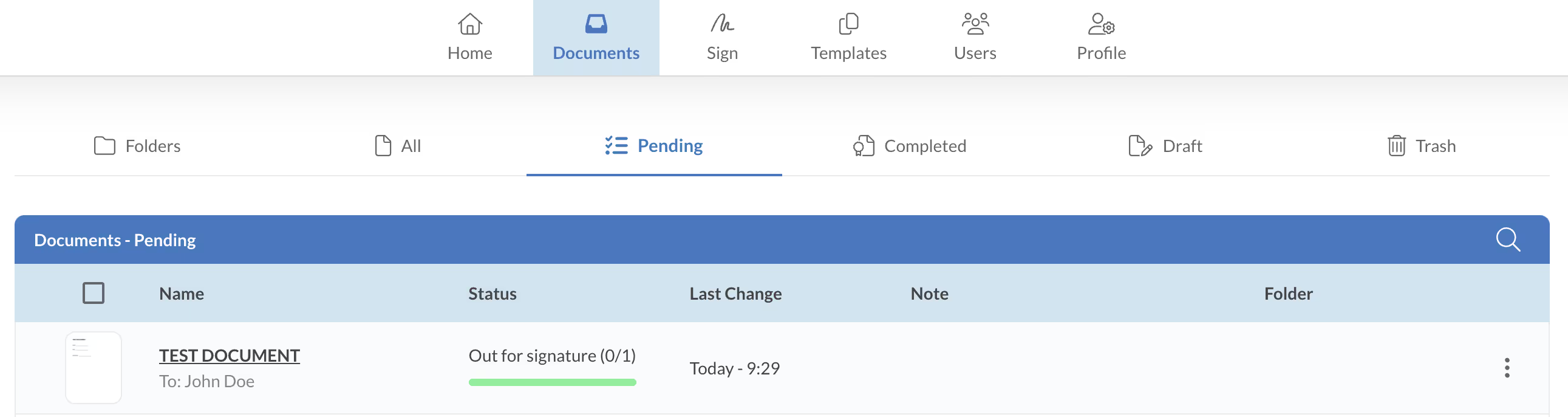
Curious about who has completed or opened your Google Doc? In the Documents section of your Sign.Plus dashboard, find the relevant file and select Status. This gives you a clear overview of who has signed and who still needs to take action. It’s an effective way to stay informed and easily manage your signed Google Docs.
Insert a Signature in Google Docs Using the Drawing Tool (Not legally binding)
If you’re looking for a quick way to add a signature in Google Docs without any extra apps, use the built-in Drawing feature:
- Open the Google Doc you need to sign.
- Go to "Insert," hover over "Drawing," and choose "+ New."
- Select the "Scribble" option (under the line tool).
- Use your mouse or trackpad to draw your signature.
- Click "Save and Close" to place it in your document.
If you need a legally binding signature, feel free to use Sign.Plus
Convert to PDF and then Sign
- Download your Google Doc by going to "File" > "Download" > "PDF Document."
- Open an eSignature service like Sign.Plus or another preferred tool.
- Upload the PDF version of your file.
- Insert your signature or request signatures from others.
- Save or download the signed PDF for your records.
How to Insert a Signature Line in a Google Doc
A designated signature line helps recipients see where to sign in your document. Here’s a simple process:
- Place the Cursor: Click where you want the signature line to appear.
- Insert a Drawing or Line: Go to Insert > Drawing > New, then add a line to serve as your signature placeholder.
- Customize as Needed: Adjust the line width or style, then click Save and Close to position it in your doc.
By doing this, you’ll guide recipients to the correct location and maintain a neat, professional look.
Create your Online Signature for Google Docs


✨ Need to Add your Signature on a Document or Contract?

Use Sign.Plus to Sign Google Docs Online
Eco-friendly Signing Solution
Efficient document signing
Enhanced security & compliance
Streamline signing in Google Docs
Start signing now
Create an account and start signing documents on different platforms right away. It's secure, compliant, and easy to use.
Partner with us!




Confédération Suisse
Confederazione Svizzera
Confederaziun Svizra
Swiss Confederation
Innosuisse - Swiss Innovation Agency